New Feature: Custom Email Message
We're excited to announce Custom Emails — a new feature that gives you complete control over the emails your recipients receive when their certificates are issued.
Why Custom Emails?
Until now, certificate delivery emails were generic. They got the job done, but they didn't reflect your brand or your voice. With Custom Emails, every certificate notification can feel personal, professional, and uniquely yours.
Whether you're running corporate training, issuing course completions, or celebrating achievements, your email is often the first touchpoint between your brand and the certificate recipient. Now you can make it count.
What You Can Customize
Subject Line
Craft the perfect subject line to ensure your emails get opened. Use dynamic variables to personalize it for each recipient:
Your {certificate_name} is ready, {recipient_name}!
Email Body
Write your message exactly how you want it. The body field includes a rich text editor with formatting options for bold, italic, strikethrough, lists, and links — so you can structure your message beautifully without writing any code. Up to 5,000 characters gives you plenty of room to include everything from congratulations to next steps. Use the Preview button to see how your email will look before saving.
Sender Name & Reply-To Address
Take your branding further by customizing how your emails appear in recipients' inboxes:
- Sender Name: This is displayed as the "From" name. Set it to your organization or program name (e.g., "CertFusion Certificates") instead of the default "CertFusion".
- Reply-To Email: Direct recipient replies to your preferred email address (e.g., "support@yourdomain.com") instead of the default "hi@certfusionmail.com".
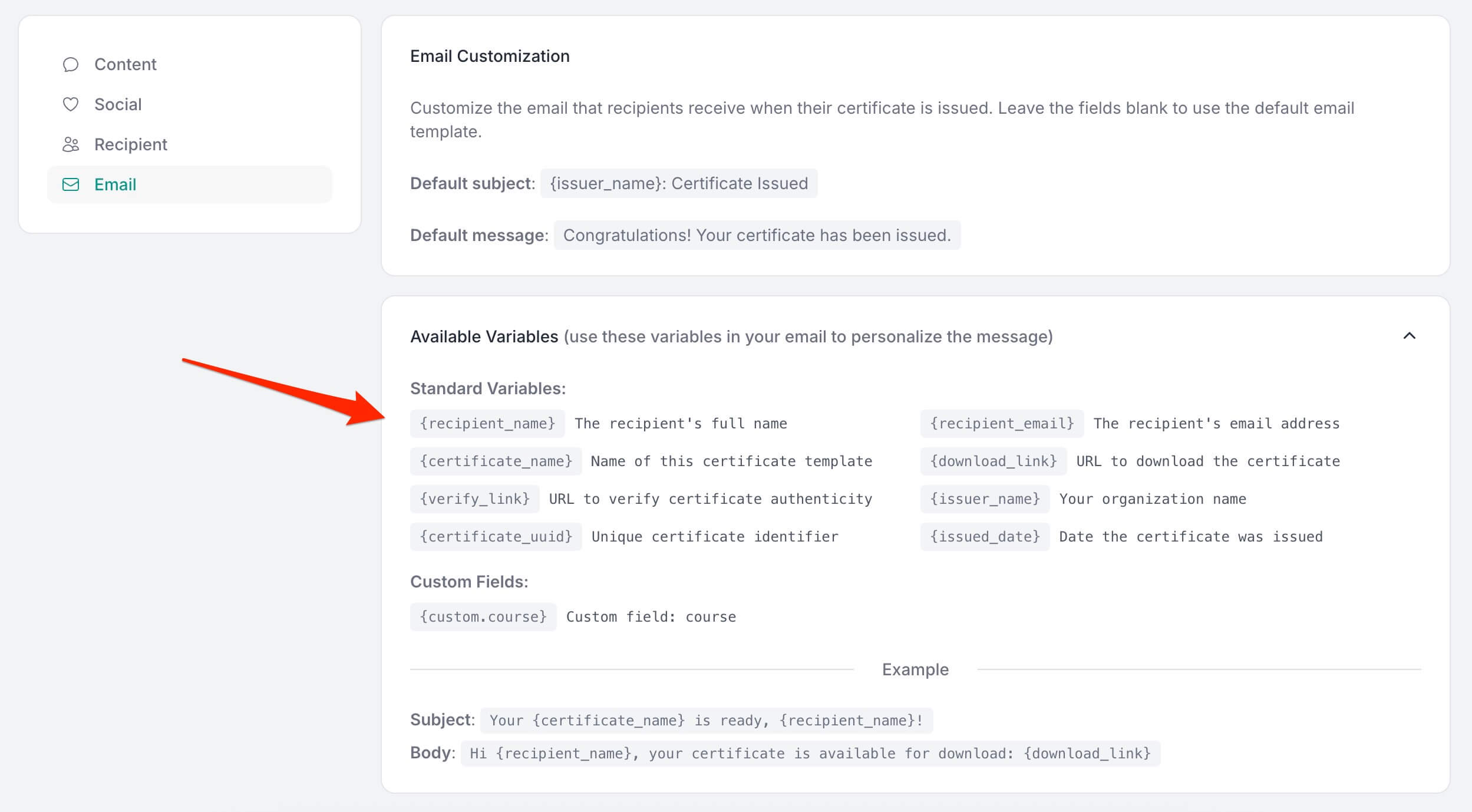
Dynamic Variables at Your Fingertips
Insert personalized content automatically with these built-in variables:
| Variable | What It Inserts |
|---|---|
{recipient_name} |
The recipient's full name |
{recipient_email} |
The recipient's email address |
{certificate_name} |
Name of the certificate template |
{download_link} |
URL to download the certificate |
{verify_link} |
URL for certificate verification |
{issuer_name} |
Your organization name |
{certificate_uuid} |
Unique certificate identifier |
{issued_date} |
Date the certificate was issued |
Plus custom fields: Any custom properties you've created for your template (like {custom.course}) are also available in your emails.
How to Set It Up
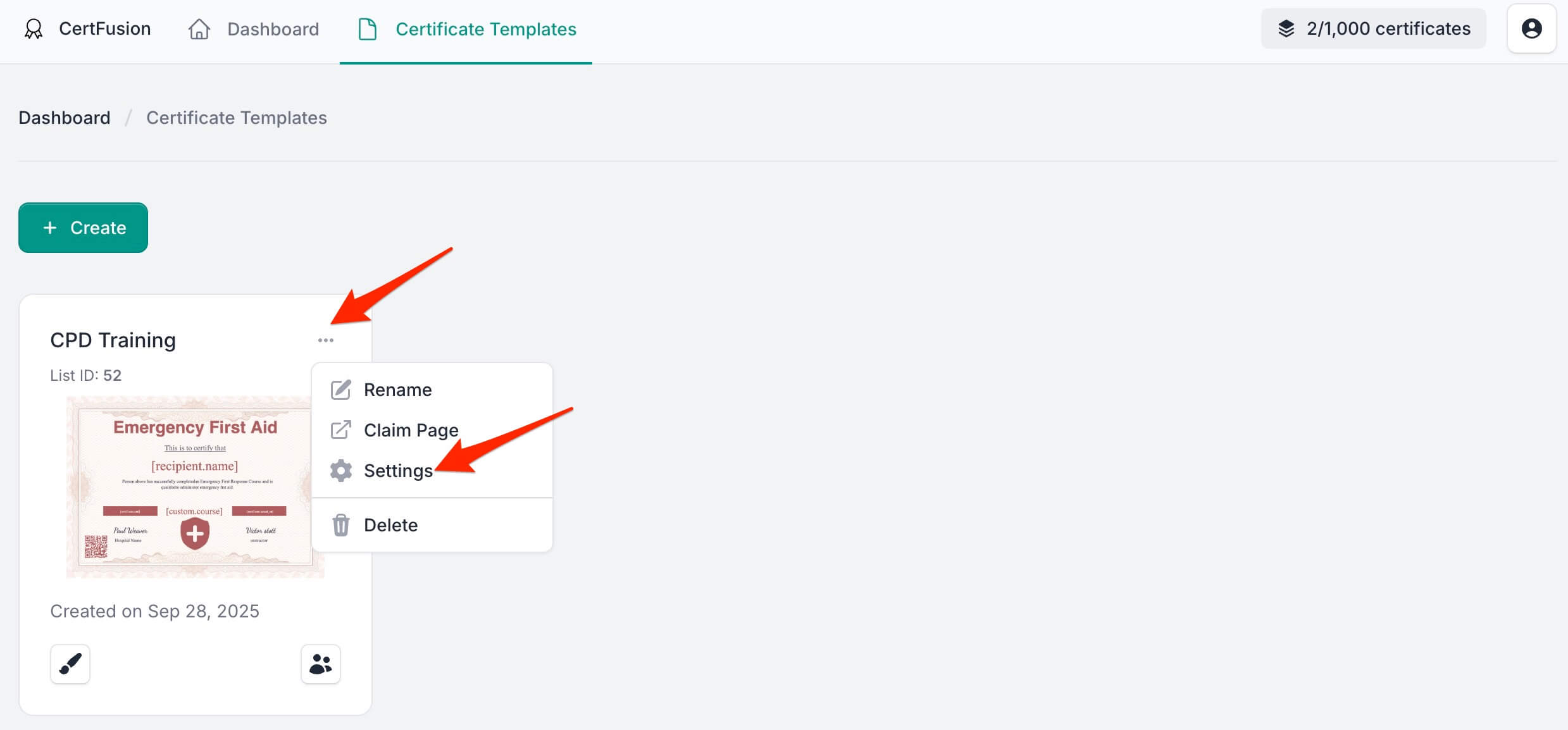
- Navigate to Certificate Templates from your dashboard
- Click the three-dot menu (⋯) on any template
- Select Settings
- Go to the Email tab
- Customize your subject, body, sender name, and reply-to address
- Hit Save
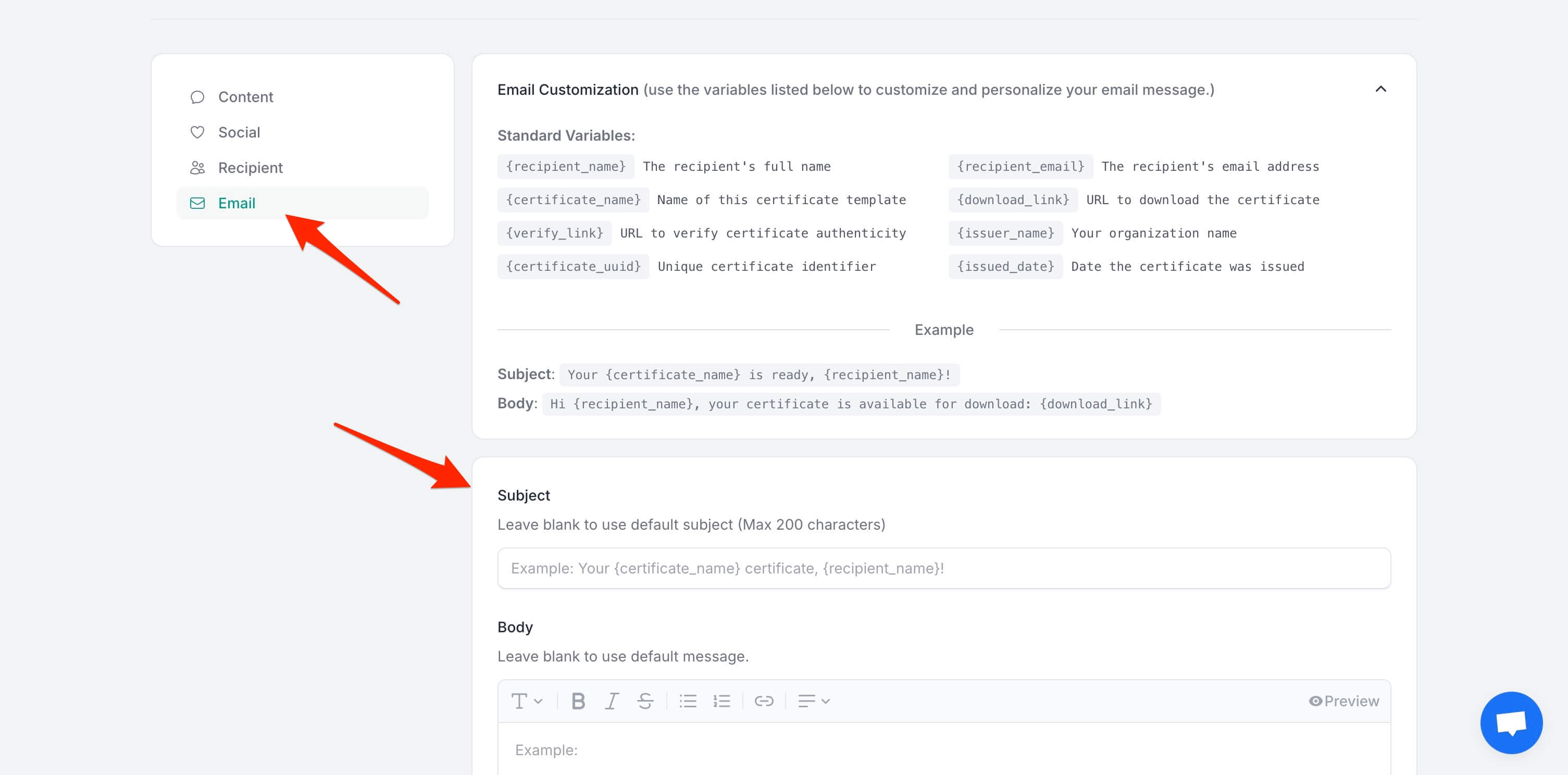
That's it. Every certificate issued from that template will now use your custom email settings.
- Scroll down to Email Sender Settings
- Enter your custom Sender Name and Reply-To Email
- Hit Save
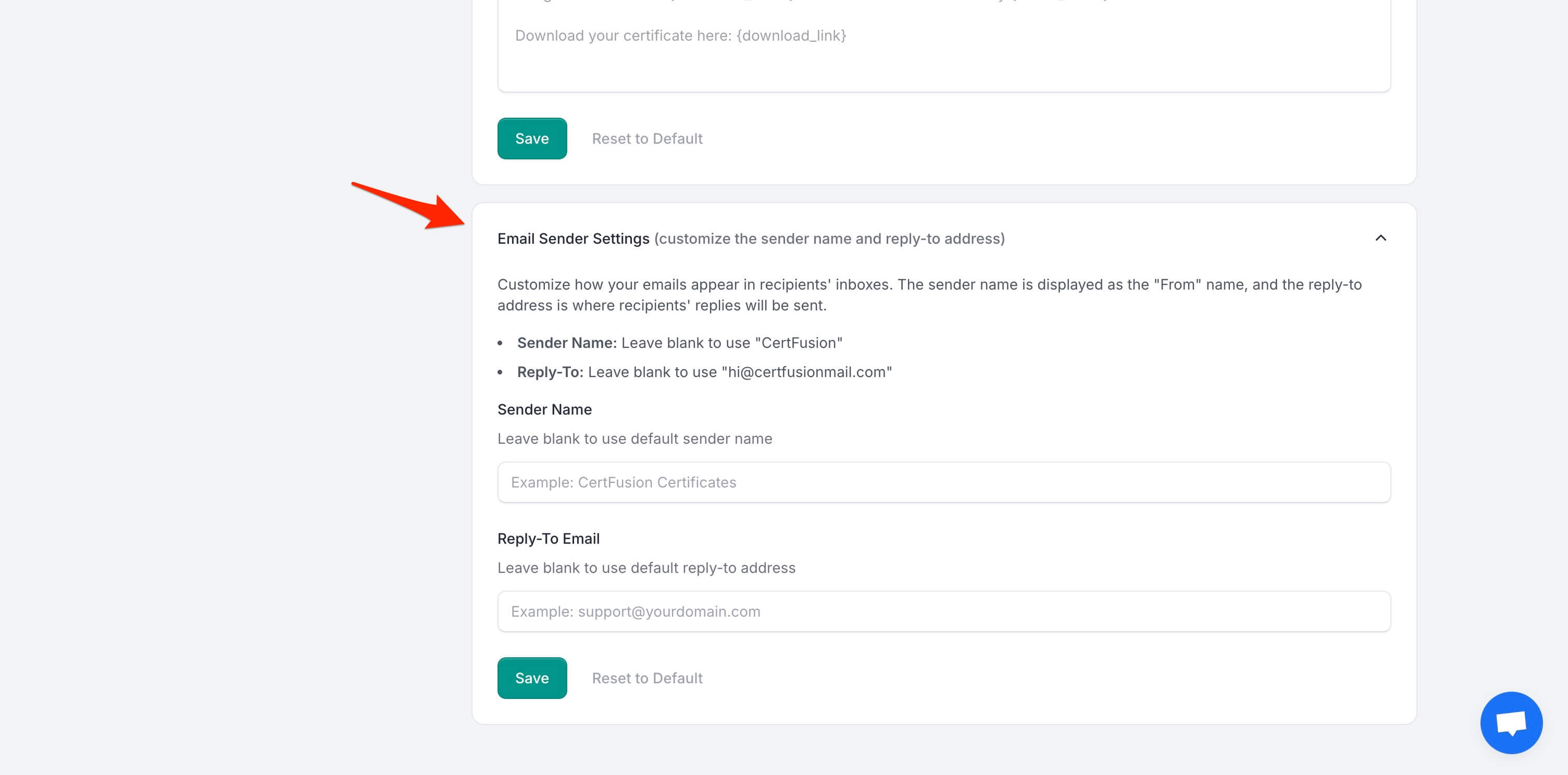
That's it. Every certificate issued from that template will now use your custom email settings.
Smart Defaults
Don't want to customize? No problem. Leave the fields blank and we'll use sensible defaults:
- Default Subject:
{issuer_name}: Certificate Issued - Default Message:
Congratulations! Your certificate has been issued. - Default Sender Name:
CertFusion - Default Reply-To:
hi@certfusionmail.com
You can always click Reset to Default to go back to the original settings.
Video Walkthrough
Prefer watching instead of reading? Here's a quick video walkthrough showing exactly how to customize your email inside CertFusion:
Example
Here's how a customized email might look:
Subject: Your {certificate_name} is ready, {recipient_name}!
Body:
Hi {recipient_name},
Congratulations! Your {certificate_name} certificate has been issued by {issuer_name}.
Download your certificate here: {download_link}
Start Personalizing Today
Custom Emails are available now for all CertFusion users. Head to your template settings and make your certificate delivery as polished as the certificates themselves.
Questions? Reach out to our support team — we're here to help.
Table of Contents
Related Articles
Discover more insights and stories that might interest you